# How to use Watch2Gether?
**URL:** https://community.w2g.tv/t/how-to-use-watch2gether/736
**Category:** How to use Watch2Gether
**Created:** [January 16, 2017, 10:43am UTC](https://community.w2g.tv/t/how-to-use-watch2gether/736 "2017-01-16T10:43:09Z")
**Posts on this page:** 20
**Page:** 1
### Author:  [@user\_95f53b7185f71fb](https://community.w2g.tv/u/user_95f53b7185f71fb)
#### Post date: [January 16, 2017, 10:43am UTC](https://community.w2g.tv/t/how-to-use-watch2gether/736/1 "2017-01-16T10:43:10Z")
# How to use Watch2Gether
> Klicke hier für die [Deutsche Version](https://community.w2g.tv/t/so-benutzt-du-watch2gether/191210)
Watch2Gether is a social video website that allows you to watch videos and other content **in sync** with others. This post explains how to use Watch2Gether and its features.
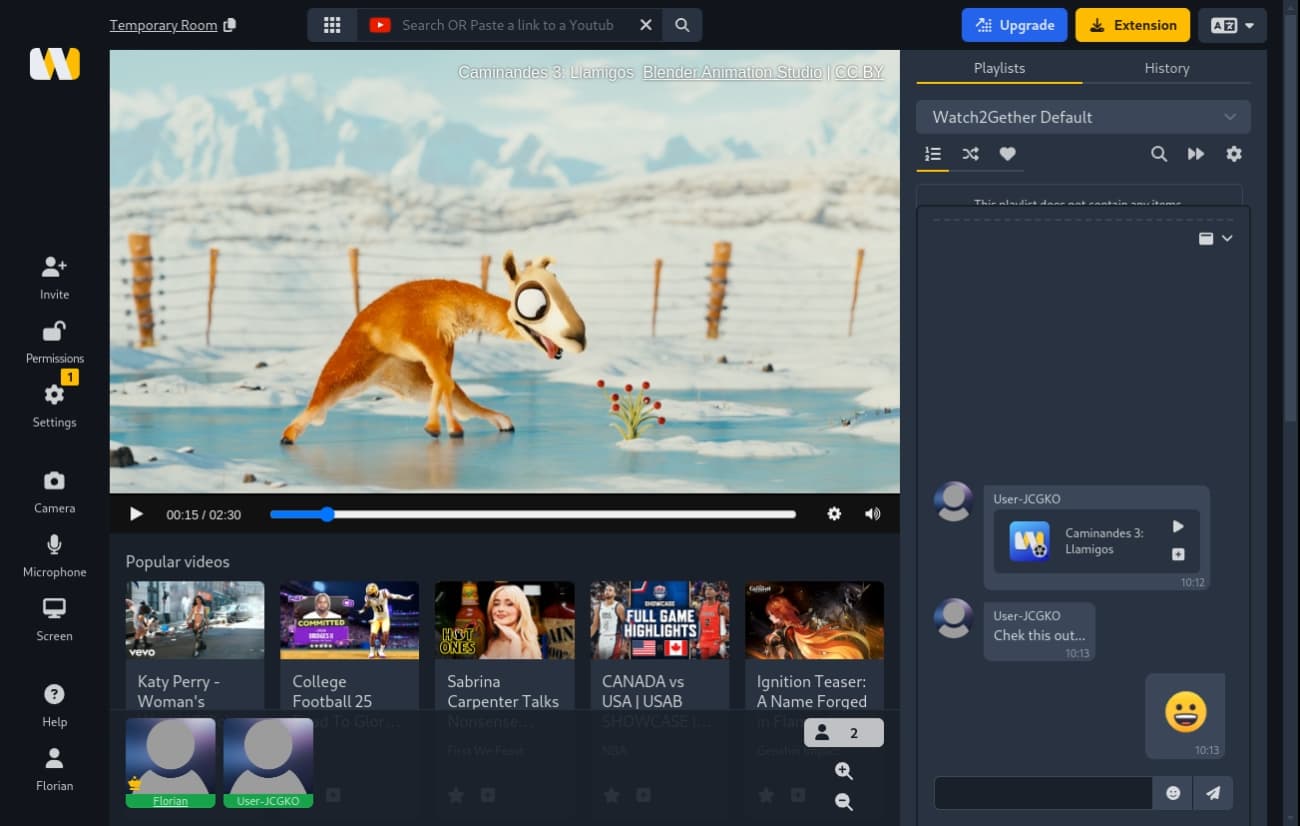
Watch2Gether **is not** a streaming service like Twitch where one user broadcasts and the others just watch. Instead, **any user in a Watch2Gether room can browse for content and select videos or audio tracks to play for everyone in the room.**
The site supports a wide range of content sources such as **YouTube** , **Dailymotion** , **Vimeo** , and **Soundcloud**. For streaming services such as **Netflix** , **Disney Plus** or **Amazon Prime** , you can use the [W2gSync](https://community.watch2gether.com/t/how-to-use-w2gsync/8975) feature, which can synchronize external sources using our [Browser Extension](https://w2g.tv/install).
Watch2Gether can be used on **desktop** and **mobile** devices. If there is a significant difference between desktop and mobile, we will note it in this documentation.
## Contents
- [Create a Room](#heading--createroom)
- [Invite Friends](#heading--invite)
- [Select Videos](#heading--selectingvideos)
- [Room Privacy and Security](#heading--privacy)
- [Create an Account](#heading--createaccount)
- [Delete your Account](#heading--deleteaccount)
- [Save your Room](#heading--saveroom)
- [Change your Username](#heading--changeusername)
- [Use the Chat](#heading--usingchat)
- [Use Webcams](#heading--webcam)
- [Use Screen Sharing](#heading--screensharing)
- [Use Playlists](#heading--playlists)
- [Keyboard Shortcuts](#heading--keyboardshortcuts)
- [Need Help?](#heading--support)
## Create a Room
Watch2Gether can be used with or without a user account. Without a registered account, you can create a new Watch2Gether room directly from the [Watch2Gether Homepage](https://w2g.tv) by clicking on **Create your room**.
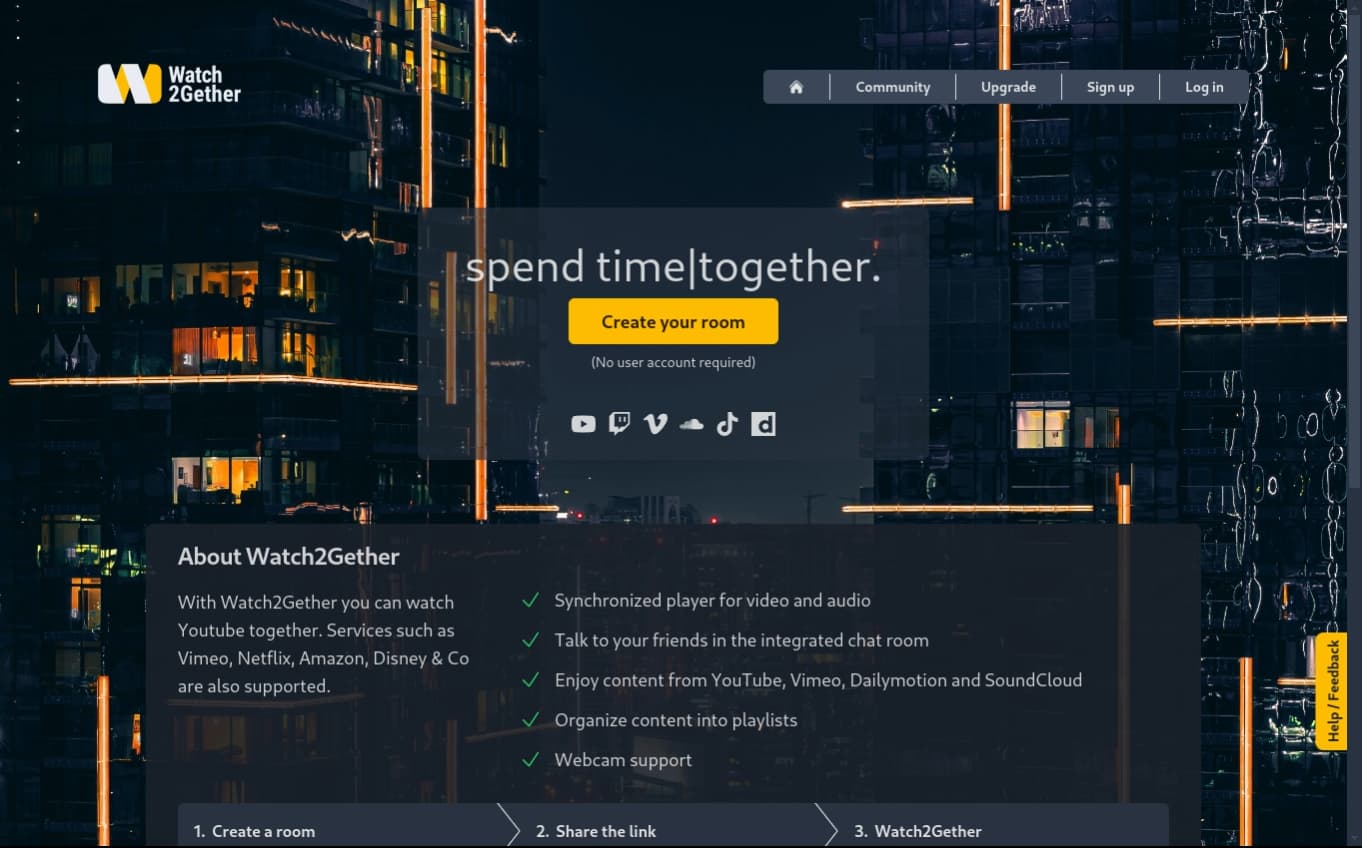
This will immediately load you into a temporary Watch2Gether room.
> Temporary Watch2Gether rooms are automatically deleted after 24 hours. If you want to create permanent rooms, you will need to [create a free Watch2Gether account](https://w2g.tv/account/).
If you are already logged in, you can create a new room from your [Account Dashboard](https://w2g.tv/account/dashboard).
## Invite Friends
In a new room, you will be the only user present. Although you can use Watch2Gether by yourself, the fun begins when you invite some friends to watch with you.
Other users are invited to a Watch2Gether room by sending them an invitation link. To access this link:
- On **Desktop** , click “Invite” in the sidebar on the left side of the room.

- On **Mobile** , click “Invite Friends” on the top right of the user list.

In both cases, the Invite Friends dialog will open.
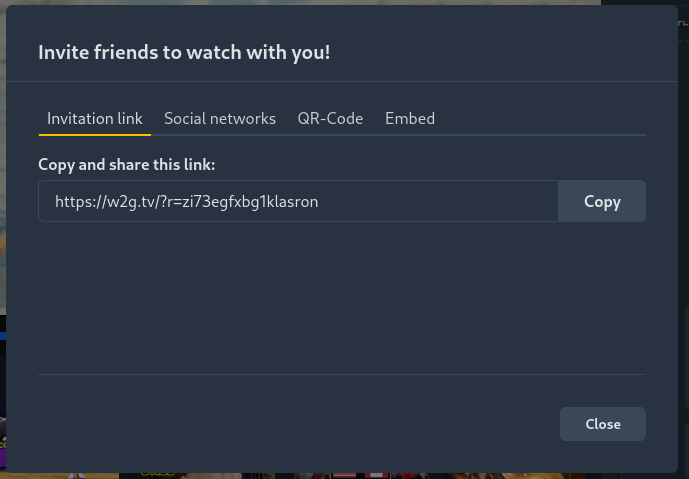
The easiest way to invite a friend is to **copy** the invitation link and **share** it with your friend in any way you like (messenger, email, social media…). Additionally, the dialog offers some options to share the link on social media or through a QR code.
When your friend(s) have joined the room, they appear in the user bar at the bottom of the room.
> **Note:** Please **do not copy** the room link directly from the URL bar of your browser. This link is customized and will only work for you.
> **Limits:** You can invite hundreds of users into a Watch2Gether room. However, the webcam feature (see below) will only work for up to 10 users/room.
## Select Videos
In a Watch2Gether room, you can select and enjoy videos and music from a variety of supported platforms such as _YouTube, Vimeo, Soundcloud_, and many others. Additionally, there are some Watch2Gether apps that allow you to load slidedecks or use a synchronized map view.
### Search for Content
Use the search bar at the top of the page to find music or videos. On mobile, click the search icon on the bottom toolbar.
Watch2Gether has a number of built-in applications that add support for different content platforms. By clicking the Apps icon on the left side of the search bar, you can select a specific platform to search. The icon of the currently selected app/platform is displayed on the left side of the search box (YouTube is selected by default).

Type your keywords into the search bar to search for content on the related platform. The results of the search are displayed under the video player.
> **Note** : Not all integrated platforms can be searched directly on Watch2Gether. To play content from these platforms, use the direct link method (see below).

Now you have three options:
1. **Play it now:** Click the video thumbnail or title.
2. **Suggest it in chat:** Click **Suggest**. The video will appear in chat and can be added to the playlist or played directly from there. This is useful if you don’t have permission to play a video immediately.
3. **Add the video to a playlist:** Click **Playlist**. The video is added to the current playlist.
When you play a video, it starts playing for everyone in the room. The video is shown **in-sync** , which means that everyone sees the same moment of the video.
If someone clicks the _Pause_ button, the video will pause for everyone. The same is true if someone moves forward or backward (seeks) in the video player: everyone else’s video will jump to the same place and start playing from there.
### Direct Link
If you can’t find what you’re looking for by searching, you can simply paste a link to the content you want to view (e.g., `https://www.youtube.com/watch?v=p5wTH5wFEwg`) into the search bar and hit **Enter**.
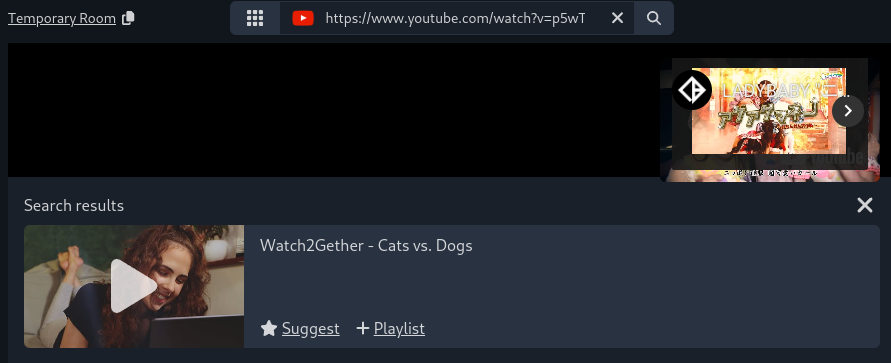
> **Note** : You don’t need to select the associated Watch2Gether application first. When you paste a link, Watch2Gether automatically detects the platform.
The video appears immediately in the search results, and you can play it, suggest it, or add it to a playlist from there.
## Room Privacy and Security
**Anyone** who receives a valid link to a room **can join that room**. Keep this in mind when sharing the room link. By default, **all users** in a room have the right to select content, interact with the player (play/pause) and playlists, and use the chat. Users may also be able to invite others into the room.
This is due to the nature of the site, which is an **interactive group experience** where anyone can contribute. While this is appropriate for smaller groups you as the room owner may want to take action when using Watch2Gether in a different setting.
By selecting **Permissions** from the sidebar, you can open the permissions and moderation settings for your room.
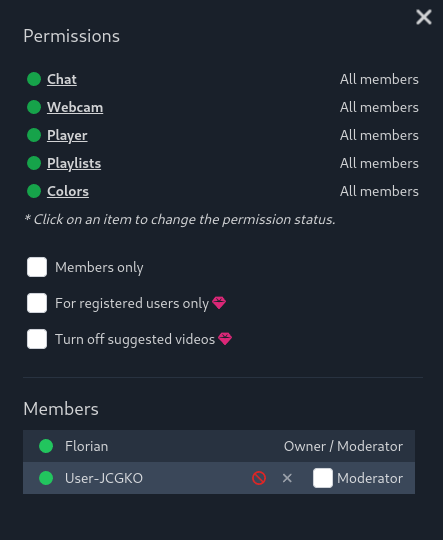
On mobile, you can find these settings in the Permissions and Moderation tabs of the General Room Settings dialog.
A Watch2Gether room has 3 different user levels:
- **Owner** : The user who created the room.
- **Moderator** : The owner can appoint moderators to help them moderate the room.
- **Member** : Everyone else in the room.
The only difference between the owner and moderators is that only the owner can appoint moderators. At the top of the Permissions dialog, you can select which features are enabled for a user level. By default, all features are available to all levels.
These features are:
- **Chat** : Determines the user level required to send chat messages.
- **Webcam** : Determines the user level required to use webcam and screen sharing.
- **Player** : Determines the user level required to select content and interact with the player (“Play/Pause/Seek”).
- **Playlists** : Determines the user level required to interact with playlists.
- **Colors** : Determines the user level required to change the room appearance (colors/background image).
At the bottom of the Permissions dialog is a **list of all users** in a room. Here the room owner can appoint moderators or ban and remove members.
## Create an Account
Optionally, you can create a free Watch2Gether account. This has several advantages:
- As the owner of a room, you can name it and save it to prevent it from being automatically deleted after 24 hours.
- You will have all the rooms you own or have visited listed on your account dashboard.
- You can upload a custom image for your avatar.
- Your username is automatically selected each time you visit a new room.
- You can optionally upgrade to Watch2Gether PLUS/PRO for even more features.
To create a free account, visit: [Sign Up](https://w2g.tv/account)
> If you don’t receive a confirmation mail, you can request another one [here](https://w2g.tv/account/new_confirmation/). Don’t forget to check your spam folder!
## Delete your Account
To delete your Watch2Gether account:
- Login to your account. [W2G Login](https://w2g.tv/account/)
- You will be redirected to your account dashboard.
- Scroll down to the footer.
- Click on “ **Delete my Account** ”.
- Confirm deletion twice.
This will delete all personal data you have entered during the registration process, all rooms you have created as well as all traces you have left in rooms your have visited.
## Save your Room
> You must be logged in to save your room. Click [here](https://w2g.tv/account) to create a free account.
With a Watch2Gether account, you can name and save rooms to prevent them from being deleted after 24 hours.
- On **Desktop** , select “Settings” in the sidebar of your room.
- On **Mobile** , select the settings icon at the bottom right of your room.
A dialogue box opens.
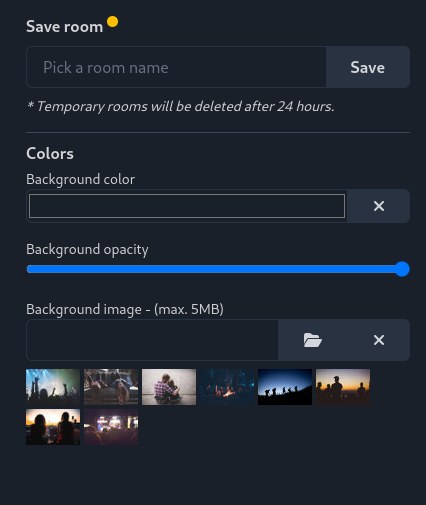
Choose a name for your room at the top and press the **Save** button.
## Change your Username
The user bar is where you can see who is currently in your room.
If you haven’t logged in, you will be assigned a random username by default.
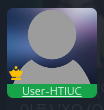
You can change the name by simply clicking on it.
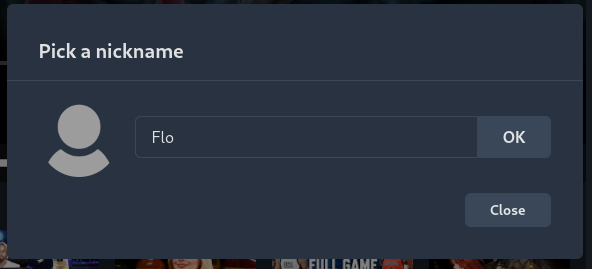
Enter a username and click **OK** to save it.
## Use the Chat
While you are watching the video together, you can talk to your friends using the built-in chat area. You can open the chat area by clicking the chat icon at the bottom right of the room. On **mobile** , select the chat icon in the bottom toolbar.
This will open a pop-up chat box where you can send messages and emoticons to your friends in the room. The chat also shows when a user joins or leaves the room.

You can make the chat window larger by pressing the box icon in the top-right corner. This makes it merge with the _Playlist_ and _History_ area, becoming a tab in this box.
You may use the following commands to format your chat input:
- `*word*` = Bold
- `_word_` = Italic
- `~word~` = Strikethrough
## Use Webcams
Watch2Gether has built-in support for webcam video and audio, so you can see and hear your friends’ reactions.
> **Up to 10 users can enable their cams simultaneously.** If a room hosts more than 10 users, the webcam feature will automatically be disabled. All other features of the room will continue to work.
To activate your video and audio feeds, use the controls in the sidebar on the left (desktop) or below the user list (mobile).
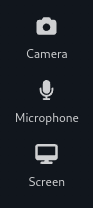
When a device is activated, the icon turns green. To disable or change the settings, click the icon again.
If enabled, each user’s video will be displayed in their avatar.
## Use Screen Sharing
To share your screen, click the **Screen** icon in the sidebar on the left side of the room.
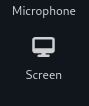
Depending on your browser, a dialog box will open where you can select which window or browser tab you’d like to share.
> **Note** : Screen sharing is only available on desktop, as mobile browsers do not implement this feature.
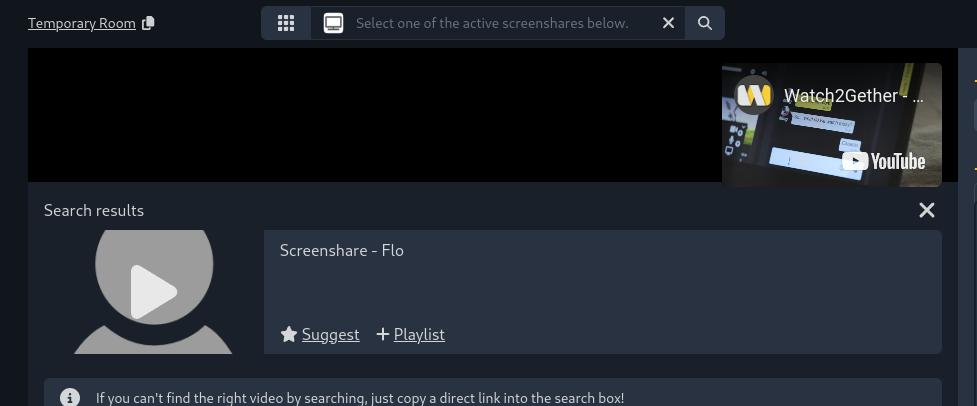
After you select a window to share and enable sharing, the video does not appear in the room’s player immediately. To enable playback, select Screenshare from the list of Watch2Gether applications.

You can then enable playback from the list of available screen shares.
## Use Playlists
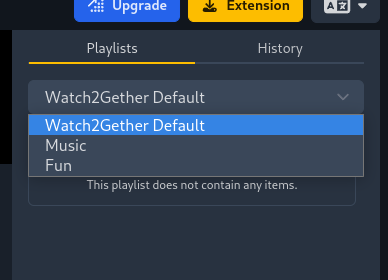
Every new Watch2Gether room comes with a default playlist called _Watch2Gether Default_. You can change the active playlist by clicking on the drop-down menu in the sidebar on the right side of the room.
### Playlist Modes
The current playlist can be used in three different modes which can be switched on the left side under the playlist selector.
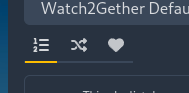
These modes are (from left to right):
- **Normal:** The items in the list are played in the order they appear in the list.
- **Shuffle:** The items in the list are played in random order.
- **Voting:** The users in the room can vote for list items and the ones with the most votes are played first.
### Creating Playlists
To create additional playlists, click the Playlist Settings icon below the Playlist drop-down list.
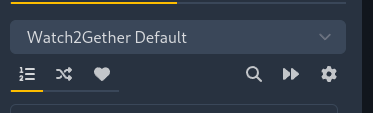
The Playlist Manager dialog will appear. You can add a new playlist by entering a name for it and clicking **New Playlist**.
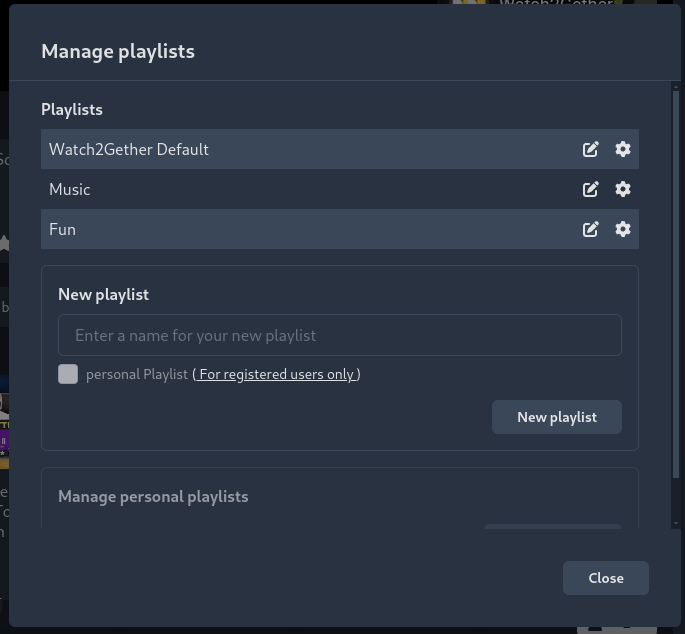
Each playlist has a Settings drop-down menu that allows you to change the playlist settings and delete the playlist.
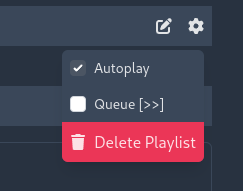
- **Autoplay** : When enabled, a playlist automatically plays one item after another.
- **Queue** : When enabled, items are automatically removed after play.
### Personal Playlists
Personal playlists belong to a user and can be moved from room to room. To create a Personal Playlist, check the Personal Playlist box when creating a list. Only the owner of a Personal Playlist can add or remove items.
> **Note** : To create a personal playlist, you must have a registered Watch2Gether account.
Personal playlists appear in the _Manage Playlists_ dialog with your username next to them.

To view and manage your personal playlists, click **Load Playlists** in the Personal Playlist box at the bottom of the Playlist Manager. Next to each list, you will see an option to either link the list to the current room or delete the list from your account entirely.
## Keyboard Shortcuts
Watch2Gether supports a number of keyboard shortcuts for your convenience:
- Play/Pause: **[Spacebar]**
- Open media search: **[s]**
- Open the quick search: **[q]**
- Fullscreen: **[f]**
- Next video: **[n]**
- Show or hide chat: **[c]**
- +10 seconds: **[→]**
- -10 seconds: **[←]**
- Close all dialogs: **[Esc]**
## Need Help?
Please get in touch if you have any further questions or issues using Watch2Gether:
Here in the forum: [Watch2Gether Community](https://community.w2g.tv)
or by email: [support@w2g.tv](mailto:support@w2g.tv)
---
### Author:  [@user\_95f53b7185f71fb](https://community.w2g.tv/u/user_95f53b7185f71fb)
#### Post date: [January 16, 2017, 2:17pm UTC](https://community.w2g.tv/t/how-to-use-watch2gether/736/2 "2017-01-16T14:17:01Z")
---
### Author:  [@maxiswar](https://community.w2g.tv/u/maxiswar)
#### Post date: [August 28, 2019, 11:30pm UTC](https://community.w2g.tv/t/how-to-use-watch2gether/736/3 "2019-08-28T23:30:24Z")
Hey! Is there a way I can share my screen onto the watch2gether screen? in sync
---
### Author:  [@user\_95f53b7185f71fb](https://community.w2g.tv/u/user_95f53b7185f71fb)
#### Post date: [August 29, 2019, 2:32pm UTC](https://community.w2g.tv/t/how-to-use-watch2gether/736/4 "2019-08-29T14:32:47Z")
Hi @maxiswar right now there is no screenshare option. But we have plans to develop a Watch2Gether App that allows users to do that!
---
### Author:  [@pedrodino2010](https://community.w2g.tv/u/pedrodino2010)
#### Post date: [September 6, 2019, 2:27am UTC](https://community.w2g.tv/t/how-to-use-watch2gether/736/5 "2019-09-06T02:27:55Z")
Then what’s the point of having an app that allows you to share your screen into the app IF IT’S JUST FOR YOU?
---
### Author:  [@user\_95f53b7185f71fb](https://community.w2g.tv/u/user_95f53b7185f71fb)
#### Post date: [September 6, 2019, 5:50pm UTC](https://community.w2g.tv/t/how-to-use-watch2gether/736/7 "2019-09-06T17:50:05Z")
Hi @pedrodino2010 when you use W2gSync the video plays in separate window for every user in the room. The screen share option allows you to map the video into the room so that its more convenient to watch and chat at the same time. I agree that this is a bit difficult to understand. I’ll update the documentation on this next week.
---
### Author:  [@user\_95f53b7185f71fb](https://community.w2g.tv/u/user_95f53b7185f71fb)
#### Post date: [September 13, 2019, 8:56am UTC](https://community.w2g.tv/t/how-to-use-watch2gether/736/9 "2019-09-13T08:56:38Z")
---
### Author:  [@user\_95f53b7185f71fb](https://community.w2g.tv/u/user_95f53b7185f71fb)
#### Post date: [September 13, 2019, 8:57am UTC](https://community.w2g.tv/t/how-to-use-watch2gether/736/10 "2019-09-13T08:57:19Z")
---
### Author:  [@romeofoxtrot00](https://community.w2g.tv/u/romeofoxtrot00)
#### Post date: [September 14, 2019, 9:30am UTC](https://community.w2g.tv/t/how-to-use-watch2gether/736/12 "2019-09-14T09:30:26Z")
i created a room and now im no longer the creator/admin
and my profile appears twice in the users section under the video player
please fix
---
### Author:  [@user\_95f53b7185f71fb](https://community.w2g.tv/u/user_95f53b7185f71fb)
#### Post date: [September 14, 2019, 9:39am UTC](https://community.w2g.tv/t/how-to-use-watch2gether/736/13 "2019-09-14T09:39:31Z")
You have probably cleared your cookies or logged out of your account in-between the sessions in the room. Please make sure you are logged in your Watch2Gether account before creating a room to make sure the room is associated to your account.
---
### Author:  [@romeofoxtrot00](https://community.w2g.tv/u/romeofoxtrot00)
#### Post date: [September 14, 2019, 9:46am UTC](https://community.w2g.tv/t/how-to-use-watch2gether/736/14 "2019-09-14T09:46:12Z")
ok. that does not help. please fix it
---
### Author:  [@user\_95f53b7185f71fb](https://community.w2g.tv/u/user_95f53b7185f71fb)
#### Post date: [September 14, 2019, 9:54am UTC](https://community.w2g.tv/t/how-to-use-watch2gether/736/15 "2019-09-14T09:54:13Z")
Please try to create a new room when you are logged in. Do you see the same problem there? If yes there is most likely an issue with your browser. Please try to disable any 3rd party extension you have installed one by one and see if that makes a difference.
---
### Author:  [@romeofoxtrot00](https://community.w2g.tv/u/romeofoxtrot00)
#### Post date: [September 14, 2019, 10:05am UTC](https://community.w2g.tv/t/how-to-use-watch2gether/736/16 "2019-09-14T10:05:29Z")
i do not wish to create a new room. i want to be able to use the one i already have with all the videos i have added to the playlists
the bug is from your side, you need to fix it and improve the admin settings
to allow the creator to assign admin permissions to other users
---
### Author:  [@user\_023b004ad9533aa](https://community.w2g.tv/u/user_023b004ad9533aa)
#### Post date: [September 14, 2019, 8:37pm UTC](https://community.w2g.tv/t/how-to-use-watch2gether/736/17 "2019-09-14T20:37:48Z")
“We have PLANS to to DEVELOP…” By this I take it this is a long way off?
---
### Author:  [@user\_f05874473cd46ba](https://community.w2g.tv/u/user_f05874473cd46ba)
#### Post date: [February 4, 2020, 3:30am UTC](https://community.w2g.tv/t/how-to-use-watch2gether/736/18 "2020-02-04T03:30:02Z")
Please let us stream other websites besides these three otherwise this website would be perfect!!
Thank You!!!
---
### Author:  [@user\_4c5396fc42d2ab2](https://community.w2g.tv/u/user_4c5396fc42d2ab2)
#### Post date: [February 26, 2020, 3:43pm UTC](https://community.w2g.tv/t/how-to-use-watch2gether/736/19 "2020-02-26T15:43:39Z")
Hi, is it possible to upload private mp3’s to a room to listen to only with the other ppl you invite to the room? there is no public video link for the music i want to listen to with my friends in the room
---
### Author:  [@user\_95f53b7185f71fb](https://community.w2g.tv/u/user_95f53b7185f71fb)
#### Post date: [February 26, 2020, 9:13pm UTC](https://community.w2g.tv/t/how-to-use-watch2gether/736/20 "2020-02-26T21:13:56Z")
Thanks for your feedback! This is unfortunately not possible.
---
### Author:  [@user\_bbecb80fd02f562](https://community.w2g.tv/u/user_bbecb80fd02f562)
#### Post date: [March 18, 2020, 9:02pm UTC](https://community.w2g.tv/t/how-to-use-watch2gether/736/21 "2020-03-18T21:02:18Z")
Hi - is it possible to record the watched video and chat output of a room for future playback, social sharing and/or broadcast?
---
### Author:  [@user\_1a28f39bed060d1](https://community.w2g.tv/u/user_1a28f39bed060d1)
#### Post date: [April 14, 2020, 1:24pm UTC](https://community.w2g.tv/t/how-to-use-watch2gether/736/22 "2020-04-14T13:24:46Z")
I’d like to know that too!
---
### Author:  [@user\_95f53b7185f71fb](https://community.w2g.tv/u/user_95f53b7185f71fb)
#### Post date: [April 14, 2020, 4:46pm UTC](https://community.w2g.tv/t/how-to-use-watch2gether/736/23 "2020-04-14T16:46:00Z")
Hi! No it’s currently not possible to record a Watch2Gether session. But it’s a nice idea 🙂
[Next page](https://community.w2g.tv/t/how-to-use-watch2gether/736.md?page=2)